Unix like Operating Systems
We are all aware of the fact that Unix is an open source operating system. By open source, we mean that its source code is kept free for changes. No doubt, for a full version Linux, you will need to have the license key from the vendor from whom you are getting the operating system. There are various vendors like Red Hat, Fedora, etc. who design Linux operating system.
History of Computer Operating Systems - Unix
Unix operating system is designed by many vendors today. However, the success of UNIX can be many attributed to the AT&T's Bell Laboratories from where it was desiged and released in 1970's. By the end of the 1970's most people who had done pioneering work in the success of this operating system were holding important positions in the computer world. They insisted on using UNIX. Educational institutions, Government bodies and electronic companies, all continued to use Unix. This led to various vendors entering into this market and producing their own versions of Unix. In 1980, 'The Open Group' or X/Open Company Ltd. was formed by a group of vendors to limit the encroachment by larger companies who wanted to control the system interface. Open Systems had to meed specific standards and Unix system was chosen as the platform for the open systems. In 1993, AT&T sold its Unix System Laboratories to Novell and in 1995, SCO bought the same from Novell. In 1995 X/Open introduced the Unix 95 brand for computer systems. It was meant to guarantee the Single Unix specification.
All Latest Windows 7 News.
Sunday, April 11, 2010

Friday, March 12, 2010
Find Latest News of Windows 7

Windows 7 is a benchmark in the software development history of Microsoft. It has been designed with acute sharpness to deliver qualitative performance in a best and secure way. Since its launch on 22nd October, last year, it has earned net revenue of $6.66 billion approximately, which is many folds higher than Windows Vista.
Feature, usability and recommendation
From my prospective, Windows 7 update is an important option, which has been included for the smooth performance of your operating system, dependent application software and peripheral devices, such as printer and scanner.
I faced the most difficult situation in my computing life, when I found my computer equipped with Windows 7 in an absolute “no boot” condition. It was showing software conflicts repeatedly. But once I updated the Microsoft’s applications with the latest patches available on its website, I got everything resolved.
But things were not so easier, if I had not kept my Windows update enabled. From Windows update I came to know about the latest patch for my computer’s operating system and other application software and when I implemented those updates I got my computer back in sound condition.
Hence, Windows 7 update is essential to maintain the performance and security of computer. It dedicatedly searches for the latest available patch required for loaded operating system and application software.
Microsoft is still working to energize its latest Windows 7 operating system. There is a news is in the air about development of an update patch known as Service Pack 1 or SP1, which is expected to be available around September 2010.
So, the best thing is to keep your Windows updated with latest patch via Windows update option, which is not a bit difficult. It can be done as, Click Start > Control Panel>System and Security>Windows Update. Click OK to apply it finally.
Limitation
Running a computer is always at a risk if you don’t update your computer on regular basis, there can be risk of hardware failure/computer crash or stealing of important personal details through spyware or adware. So never compromise and get the best update from Microsoft’s website.
Conclusion
Over and all Microsoft has done a great job with the introduction of self update feature in latest Windows 7. It helps to get quick and automatic access to latest update available from manufacturer and hence you
Wednesday, March 10, 2010
Good Experience with Windows 7 Professional
Features
After experimenting with a series of operating system form Microsoft and others, I have concluded that there is no alternative for Windows 7 Professional in the present date. Once, I had installed it I took a sigh of relief as it is much stable and user-friendly and miles away from software conflictions. I am pretty much sure that its features, like JumpList, Aero, HomeGroup, Domain Join and XP Mode are enough to challenge any OS.
Usability
Windows 7 Professional has simplified my task. Now, I can easily connect my PCs at home to share files, music, video and even my printer without any hassle. Earlier, it was never possible without help of technicians. In addition, I can maintain my privacy too with the password protection feature. I don’t face difficulty while working with multiple Windows because Aero Shake minimizes unessential applications within an eye blink by just shaking them with the mouse. I can access file located in remote section of my computer network easily and quickly with smart search of Windows Search option. When I just enter an alphabet in the search box, it gives a list of relevant files. It was never so easy with Windows Vista’s “Instant Search.” With the Tab Group feature in Internet Explorer you can easily manage multiple tabs, which was not possible in earlier versions of IE. Hence, it’s a totally a never-before experience with Windows 7 Professional.
Limitation
Although, I have a good experience with Windows 7 Professional, but I think Microsoft should have been a bit liberal with the users on the compatibility front. I faced issues while doing custom install on one of my old computer. It showed software conflicts a number of times, when I had to do install device drivers.
Conclusion:
Above and all, Windows 7 professional is a good presentation from Microsoft. There are some new features, which will be soon adaptable for me. I liked it mostly on account of its enhanced performance with least of software conflicts and strong security features, which were tough challenge in earlier versions.
After experimenting with a series of operating system form Microsoft and others, I have concluded that there is no alternative for Windows 7 Professional in the present date. Once, I had installed it I took a sigh of relief as it is much stable and user-friendly and miles away from software conflictions. I am pretty much sure that its features, like JumpList, Aero, HomeGroup, Domain Join and XP Mode are enough to challenge any OS.
Usability
Windows 7 Professional has simplified my task. Now, I can easily connect my PCs at home to share files, music, video and even my printer without any hassle. Earlier, it was never possible without help of technicians. In addition, I can maintain my privacy too with the password protection feature. I don’t face difficulty while working with multiple Windows because Aero Shake minimizes unessential applications within an eye blink by just shaking them with the mouse. I can access file located in remote section of my computer network easily and quickly with smart search of Windows Search option. When I just enter an alphabet in the search box, it gives a list of relevant files. It was never so easy with Windows Vista’s “Instant Search.” With the Tab Group feature in Internet Explorer you can easily manage multiple tabs, which was not possible in earlier versions of IE. Hence, it’s a totally a never-before experience with Windows 7 Professional.
Limitation
Although, I have a good experience with Windows 7 Professional, but I think Microsoft should have been a bit liberal with the users on the compatibility front. I faced issues while doing custom install on one of my old computer. It showed software conflicts a number of times, when I had to do install device drivers.
Conclusion:
Above and all, Windows 7 professional is a good presentation from Microsoft. There are some new features, which will be soon adaptable for me. I liked it mostly on account of its enhanced performance with least of software conflicts and strong security features, which were tough challenge in earlier versions.
Monday, March 8, 2010
Microsoft’s Windows 7- Success Features

Microsoft’s Windows 7, which was introduced on 22nd October, 2009, has climbed the new charts of popularity. Try this new Windows operating system to experience a new level of computing.
Performance accelerator
With latest Windows 7 loaded on your computer, managing your files and folders gets pretty easier. You can keep your frequently required files on your finger tips, with the help of JumpList and Aero Pin features of Microsoft’s Windows 7. Windows Search will help you to quickly access files, photos and other important documents which are occasionally used. Aero Snap will make your job easier, if you have to do work related to reading, organizing, and comparing windows.
Easy networking
Microsoft’s Windows 7 has introduced Home Group, which will simplify your home network, so that you can easily share your files and peripheral devices with a single click. Moreover you can customize your sharing job.
If you have a requirement to share your office or home network, you can make use of Direct Access. To maintain the security of your data you can implement BitLocker encryption feature.
Security and Maintenance
A lot of improvement has been done on the security front with the introduction of Multiple Active Firewall Policies, DirectAccess, BranchCache, BitLocker To Go, AppLocker and Biometric enhancement. Windows 7 Action Center is a user-friendly feature, because it offers a common platform to system maintenance information, security information and computer troubleshooting.
So, don’t wait and install Microsoft’s Windows 7 on your computer to get the best computing experience.
Tuesday, February 9, 2010
How to create backup in windows 7
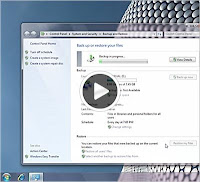 Create copies of data files and system image which includes system settings, programs and files with Windows Backup. Choose custom location in Windows 7 for data backup. You can check for this option under System and Security in your Control Panel and can also access it through Action Center.
Some vital functionality was missing in Windows Vista which Microsoft has tried to cover up in Windows 7. Windows 7 has build on the new features in Windows Vista Backup. Windows 7 provides you with in-built tool to back up your data. Microsoft has introduced consolidated Backup and restore Center in Windows Vista but Windows 7 has in-built backup center. It’s in-built “Shadow Copy” feature restores the previous versions of files and folders and makes repetitious backups when required, if certain part of the file has been changed then it only transfer that part and copy it over.
Backup and Restore Center will show you the backup device you have selected, the space left on it, the space occupied by windows Backup and how far you are into the process if you are currently running a backup. Windows 7 backup facilitates you by providing access to your previous system image files for deletion, it also displays how much space is being used by each of its backup components.
Try the following steps to create backup:
1 Start the process of creating a backup from the Backup and restore center in the Control Panel.
2 Choose the location where you want to create your backup.
3 Network location can be selected to create backup. Add your network path by clicking Add New Location.
4 Choose what to backup, once you have chosen the location.
5 You can choose your own files as well as Windows chosen file.
6 Start backup process. the Backup and Restore center notifies that backup is in progress.
7 Restore the files once backup process is over.
But it is far more easier to backup your files over the network, if you are using Professional or Ultimate edition of Windows 7 then you need not keep the drives as you also have the option of backing up your files to a network.
You can set up your network to save the copies of critical files. It will surely proved to be a worthwhile investment as a Home Network backup can easily maintain the copies of the electronic data files thus securing the data in case of theft, disaster and computer failures. You have the option to choose from online service or Home Network backup. There are different methods using which you can set your data on Home Computer Network such as backups to CD-ROM or DVD-ROM discs, network backups to a local server and online backups to a remote hosting service.
In network backup to a local server you don’t require to burn several disks considering setting up a backup server on your home network. A backup server has a large hard disk drive and network to receive other home network files. In Network backup to a Remote Hosting Service many Internet sites offer backup hosting services which results in automatic network backups.
All these features help the user to have the full control over the flies which are backed up and you can have automatic backup capability with suitable software in Local Servers Backup. In Remote Hosted Backup your data is saved with lower risk from theft.
Monday, February 1, 2010
MUI for Windows 7
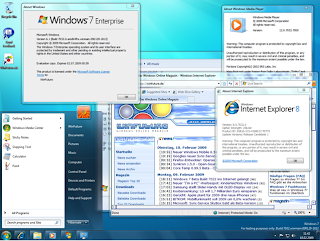 Based on your company's current geographic and IT infrastructure, you need to determine your language and country/region requirements, as well as your hardware requirements and limitations to deploy the appropriate language configurations of Windows 7 and configure country/region support.
You will also need to:
* Determine the roaming user needs in your organization.
* Evaluate the hardware requirements for multilingual support.
* Determine whether your organization will need to deploy a single global image or specific country/region builds for different offices in your organization.
Assessing hardware requirements for multilingual support
Supporting multiple languages can impact your hardware requirements in two areas:
Hard disk space: Some languages require more hard-disk storage space than others. The more languages installed on a computer, the more hard-disk space consumed.
Specialized hardware devices: Some languages or users require special keyboards, IMEs, or alternative input devices.
Determining the requirement of language and country/region
If you have polyglot office environments or you do business in multiple languages then you need to know which languages or bids your organization requires. Also you need to know that whether these languages require input devices or input method editors (IMEs).
You must determine whether currency, time zone, or calendar formats vary between the different countries/regions if you do business on international level. Additionally, you must determine which line-of-business applications you have that must accommodate such country/region differences.
A four-column planning table can help you determine your language and country/region needs. You can organize the table as follows:
* In column one, list your offices or divisions.
* In column two, list the languages or dialects used in those offices or divisions.
* In column three, note the corresponding Windows 7 language collections and locales that support those languages or dialects. For tables listing Windows 7 language packs and settings, see Supported Language Packs and Default Settings.
* In column four, note special standards and format settings, input language support, or default languages for non-Unicode programs required for your offices or divisions.
So, as release date of Windows 7 is close, we find ourselves with revolutionary and new Microsoft OS: Windows 7. Windows 7 seems poised to succeed where Vista couldn’t as it is built on the latest technologies introduced with Vista, but with a renewed focus on performance and compatibility. We’ve finally received a final build of Windows 7 and have run it through the wringer in both the Lab and in the real-world. Here’s what we found.
Friday, January 22, 2010
Windows 7 supported games
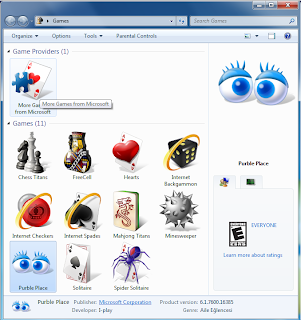 If you have nothing to do, you can play some interesting and exciting games on your latest Windows 7 computer. Windows 7 Games Explorer offers tools to set up hardware, software and parental controls, options to get updates, and games you can play against the computer and other players online such as Chess Titans, FreeCell, Hearts, Internet Backgammon, Internet Checkers, Internet Spades, Mahjong Titans, Minesweeper, Purble Place, Solitaire, and Spider Solitaire.
When you start an Internet game, the game server automatically finds players matched to your skill level and language from around the world. You can’t choose the players or locations of your opponents, but you can interact with them by using the Chat controls. Description of each game is given below play as per your interest.
Window 7 Chess Titans: Put your opponents’ king in checkmate. Each player has one king. As you capture your opponent’s pieces, strategize a way to capture the opposing king.
FreeCell: Stack the cards in the cells at the top in descending order, starting from any card, alternating the red and black cards.
Window 7 Spider Solitaire: Stack the cards by suit in one column in descending order.
Solitaire: Reveal all the cards that are turned face down by stacking them in descending order (alternating the red and black cards) on the lower piles, and stack them in ascending order from Ace through King by suit in the upper piles. You use the mouse to drag one card on top of another.
Window 7 Purble Place: Teach colors, shapes, and pattern recognition.
Window 7 Minesweeper: Uncover all the squares that don’t contain mines in the shortest amount of time. You use the numbers in the uncovered squares to determine which adjacent squares contain mines.
Window 7 Mahjong Titans: Remove all the tiles from the board by finding matching pairs of free tiles. Mahjong is a form of solitaire that is played with tiles instead of cards.
Window 7 Hearts: Score the lowest number of points, one point for each heart and 13 points for the Queen of Spades. You play a card to follow suit or a heart or the Queen of Spades when you can’t follow suit.
Microsoft Windows 7 also brought back three of the most lovely games from Windows XP. These are Internet Checkers, Internet Spades, and Internet Backgammon. But these are only available in Home Premium, Professional, and Ultimate editions of windows 7. Although these games were present in XP, Windows 7 offer them with 3-D graphics. You can access games through Games Explorer, which has also been redesigned for Windows 7.
Use Windows 7 Games Explorer tool in order to access your favorite games. Game Explorer provides a list of all games currently installed on your Windows 7 computer. You can access Game Explorer through Start menu. Each game’s icon provide easy access to the game and offer detailed information about game’s publisher, developer, version, and many more. Use this information to sort and organize your games. Right-click a game’s icon for easy access to a menu of play tasks.
Using the Games Explorer command bar, you can easily access any game-related settings for your software or hardware.
Note: To open the Windows 7 Games folder, you normally click on the Games Explorer link in the Start Menu. If you cannot see the Games link there, click Start > Right Click > Properties > Start Menu tab > Customize > Select Games > Display as a link or Display as a menu > OK > Apply > OK. You can also type Shell:Games in Windows start menu search bar and hit enter to open the Games folder.
FreeCell: Stack the cards in the cells at the top in descending order, starting from any card, alternating the red and black cards.
Window 7 Spider Solitaire: Stack the cards by suit in one column in descending order.
Solitaire: Reveal all the cards that are turned face down by stacking them in descending order (alternating the red and black cards) on the lower piles, and stack them in ascending order from Ace through King by suit in the upper piles. You use the mouse to drag one card on top of another.
Window 7 Purble Place: Teach colors, shapes, and pattern recognition.
Window 7 Minesweeper: Uncover all the squares that don’t contain mines in the shortest amount of time. You use the numbers in the uncovered squares to determine which adjacent squares contain mines.
Window 7 Mahjong Titans: Remove all the tiles from the board by finding matching pairs of free tiles. Mahjong is a form of solitaire that is played with tiles instead of cards.
Window 7 Hearts: Score the lowest number of points, one point for each heart and 13 points for the Queen of Spades. You play a card to follow suit or a heart or the Queen of Spades when you can’t follow suit.
Microsoft Windows 7 also brought back three of the most lovely games from Windows XP. These are Internet Checkers, Internet Spades, and Internet Backgammon. But these are only available in Home Premium, Professional, and Ultimate editions of windows 7. Although these games were present in XP, Windows 7 offer them with 3-D graphics. You can access games through Games Explorer, which has also been redesigned for Windows 7.
Use Windows 7 Games Explorer tool in order to access your favorite games. Game Explorer provides a list of all games currently installed on your Windows 7 computer. You can access Game Explorer through Start menu. Each game’s icon provide easy access to the game and offer detailed information about game’s publisher, developer, version, and many more. Use this information to sort and organize your games. Right-click a game’s icon for easy access to a menu of play tasks.
Using the Games Explorer command bar, you can easily access any game-related settings for your software or hardware.
Note: To open the Windows 7 Games folder, you normally click on the Games Explorer link in the Start Menu. If you cannot see the Games link there, click Start > Right Click > Properties > Start Menu tab > Customize > Select Games > Display as a link or Display as a menu > OK > Apply > OK. You can also type Shell:Games in Windows start menu search bar and hit enter to open the Games folder.
Subscribe to:
Posts (Atom)