Showing posts with label backup software windows 7. Show all posts

Tuesday, June 1, 2010

Windows 7 Shut Down - Know How to Fix your PC Instantly!

Windows 7 is a very advanced and up-to-date system which has become extremely popular since its launch - but many people are now discovering that this system is prone to shutting down randomly, leading you to lose data and unsaved games. This issue is very common and extremely damaging to your PC, and here's how to fix your PC instantly!

One of the biggest causes of this problem is down to overheating. Computers are a lot like cars - they continually get hot and have to be cooled. It's often the case that if you're using your computer too much or are restricting the airflow inside it, then it can become overheated and just shut down. To fix this, if you have a laptop then place the laptop onto a desk or flat surface to make sure that all the air can get to it as designed. If you have a desktop, then you should take the side case off the computer and use a fan to blow cool air at your system. If your computer is overheating, this solution should solve it.

However, there's a much more common cause of random computer shut downs which many people don't even know about - the "registry" of Windows. The registry is a database which Windows uses to store information and settings for inside your PC. It's basically like the "Yellow Pages" of your system, as its where Windows keeps many different pieces of information that it calls whenever it needs to. Unfortunately, the registry database is a constant cause of errors for the Windows system, as it's forever being saved in the wrong way.

Each time you use Windows, it's constantly saving a lot of the vital registry settings your computer needs incorrectly, causing your computer to become extremely unstable and unreliable. As Windows needs to use a lot of registry settings each time you use it, if any of these are damaged, corrupted or unreadable, your system is going to run slower and with a series of errors. However, if the setting is so important that Windows is unable to run without it... and it cannot read that setting... you're either going to get the "blue screen error" or your PC is just going to shut down.

To fix this cause of the problem, you can actually use a 'registry cleaner' to fix the various damaged parts of the registry that could be causing your system to run slower. A registry cleaner is a software tool that's designed to scan through the central registry database of your PC and fix any of the damaged or corrupt settings that are inside it. This means that if your computer has any damaged or corrupt registry settings, using one of these tools will make it much more reliable and stable.

Tuesday, February 9, 2010

How to create backup in windows 7

data back up in Windows 7Create copies of data files and system image which includes system settings, programs and files with Windows Backup. Choose custom location in Windows 7 for data backup. You can check for this option under System and Security in your Control Panel and can also access it through Action Center.

Some vital functionality was missing in Windows Vista which Microsoft has tried to cover up in Windows 7. Windows 7 has build on the new features in Windows Vista Backup. Windows 7 provides you with in-built tool to back up your data. Microsoft has introduced consolidated Backup and restore Center in Windows Vista but Windows 7 has in-built backup center. It’s in-built “Shadow Copy” feature restores the previous versions of files and folders and makes repetitious backups when required, if certain part of the file has been changed then it only transfer that part and copy it over.

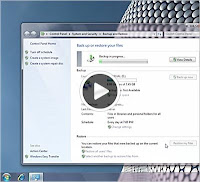
Backup and Restore Center will show you the backup device you have selected, the space left on it, the space occupied by windows Backup and how far you are into the process if you are currently running a backup. Windows 7 backup facilitates you by providing access to your previous system image files for deletion, it also displays how much space is being used by each of its backup components.

Try the following steps to create backup:

1 Start the process of creating a backup from the Backup and restore center in the Control Panel.

2 Choose the location where you want to create your backup.

3 Network location can be selected to create backup. Add your network path by clicking Add New Location.

4 Choose what to backup, once you have chosen the location.

5 You can choose your own files as well as Windows chosen file.

6 Start backup process. the Backup and Restore center notifies that backup is in progress.

7 Restore the files once backup process is over.


But it is far more easier to backup your files over the network, if you are using Professional or Ultimate edition of Windows 7 then you need not keep the drives as you also have the option of backing up your files to a network.

You can set up your network to save the copies of critical files. It will surely proved to be a worthwhile investment as a Home Network backup can easily maintain the copies of the electronic data files thus securing the data in case of theft, disaster and computer failures. You have the option to choose from online service or Home Network backup. There are different methods using which you can set your data on Home Computer Network such as backups to CD-ROM or DVD-ROM discs, network backups to a local server and online backups to a remote hosting service.

In network backup to a local server you don’t require to burn several disks considering setting up a backup server on your home network. A backup server has a large hard disk drive and network to receive other home network files. In Network backup to a Remote Hosting Service many Internet sites offer backup hosting services which results in automatic network backups.

All these features help the user to have the full control over the flies which are backed up and you can have automatic backup capability with suitable software in Local Servers Backup. In Remote Hosted Backup your data is saved with lower risk from theft.